Guide · Clinic setup
Inviting your team and choosing their roles
Give everyone at your clinic their own sign-in, and a role that decides what they can see and do, from booking patients to reading results.
Everyone at your clinic signs in to Doxtor as themselves. That way each action is recorded against the person who took it, and each person sees only what their job needs.
Invite someone
Open Team and invite the person by email. They receive an invitation, choose a password, and sign in at your clinic’s Doxtor address.
Choose their role
Each team member has one role. The roles Doxtor provides are:
| Role | What it is for |
|---|---|
| Owner | Full control of the clinic, including billing and security. One per clinic. |
| Admin | Runs the clinic day to day. Cannot change security settings or remove people. |
| Manager | Sees patient records and results in full. |
| Member | Books patients, orders tests and takes samples. Cannot see results or reports. |
| Billing | Invoices, payment details and the plan. No access to anything clinical. |
| Viewer | Sees everything in the clinic and changes nothing. |
The Member role is for the person at the front desk or taking samples: they can do both jobs, and still cannot read a result.
When someone leaves
Remove them from Team. They lose access straight away. Their name stays on everything they did, so your records stay complete.
Two-factor authentication
Each team member can add a second step to signing in: a code from an authenticator app. It protects your patients’ records even if a password is guessed or reused.
Your clinic’s owner or an admin can require it for everyone. While it is required, anyone without an authenticator sets one up the next time they sign in, and nobody at the clinic can turn theirs off.
Next: placing your first order.
Related resources
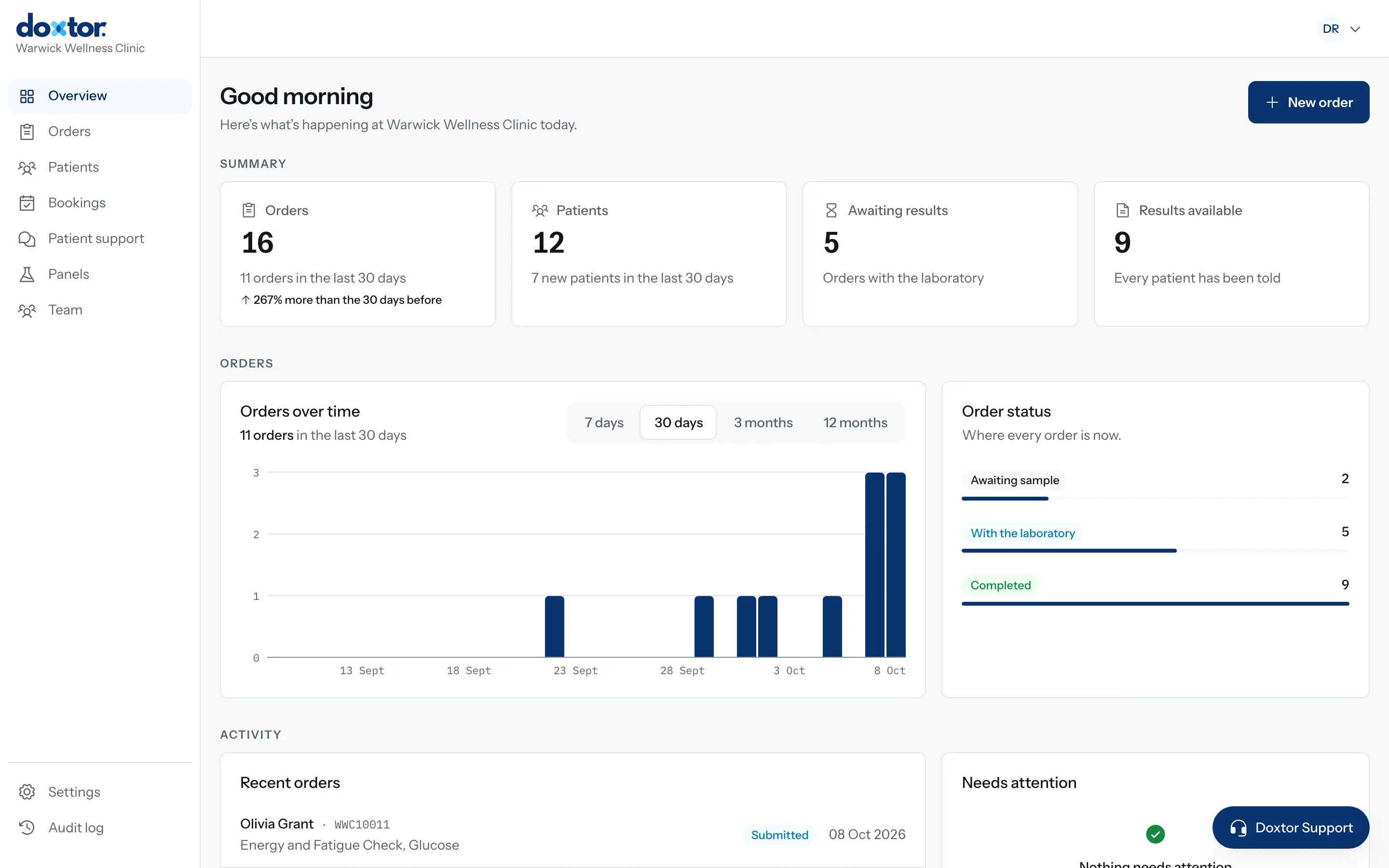
Setting up your clinic in Doxtor
What happens between joining Doxtor and placing your first order: the invitation, the setup guide and the settings worth checking first.
1 min read
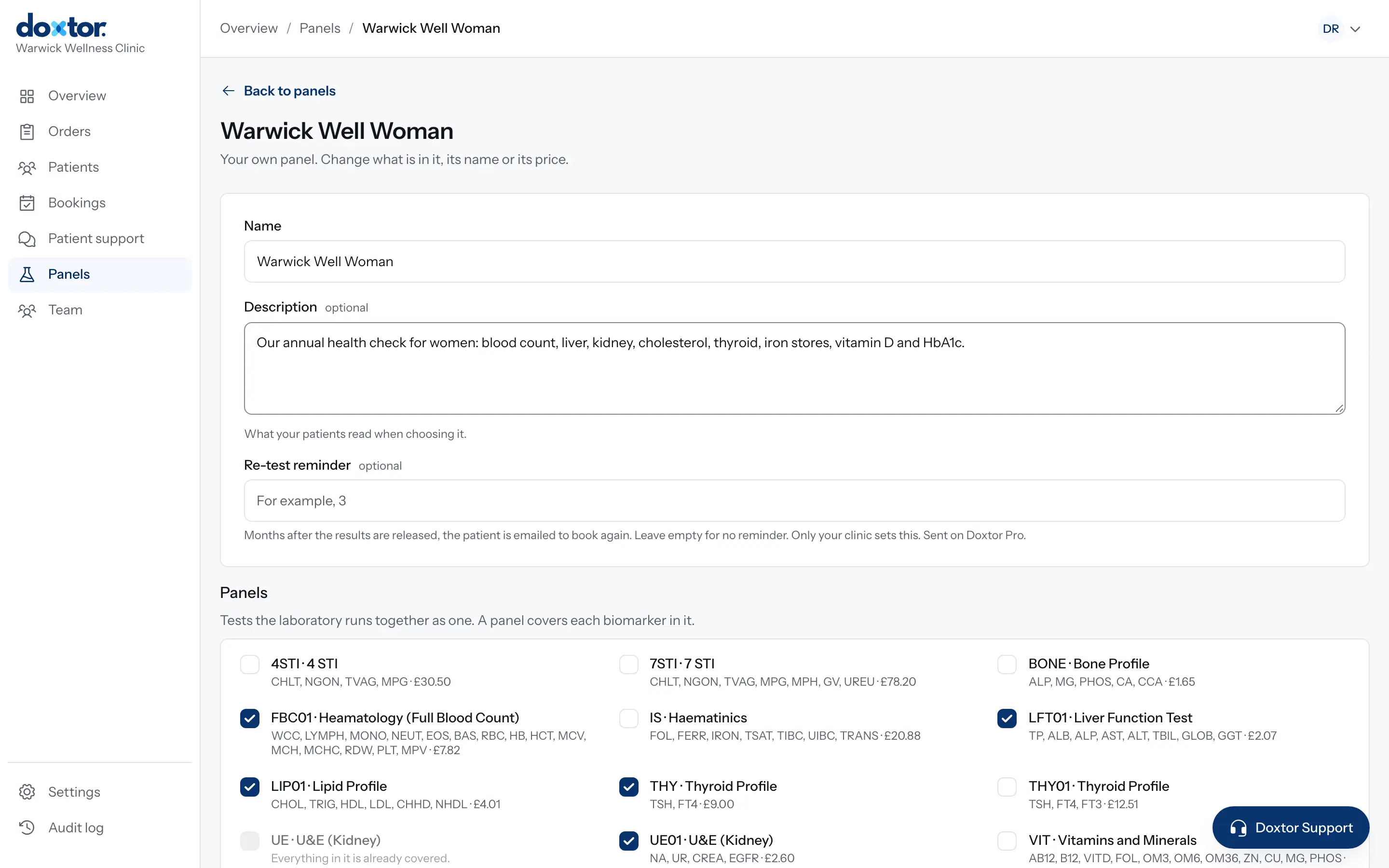
Building your own panels
Put the tests your clinic offers together once, as named panels with a description for patients, and order them in one click from then on.
1 min read
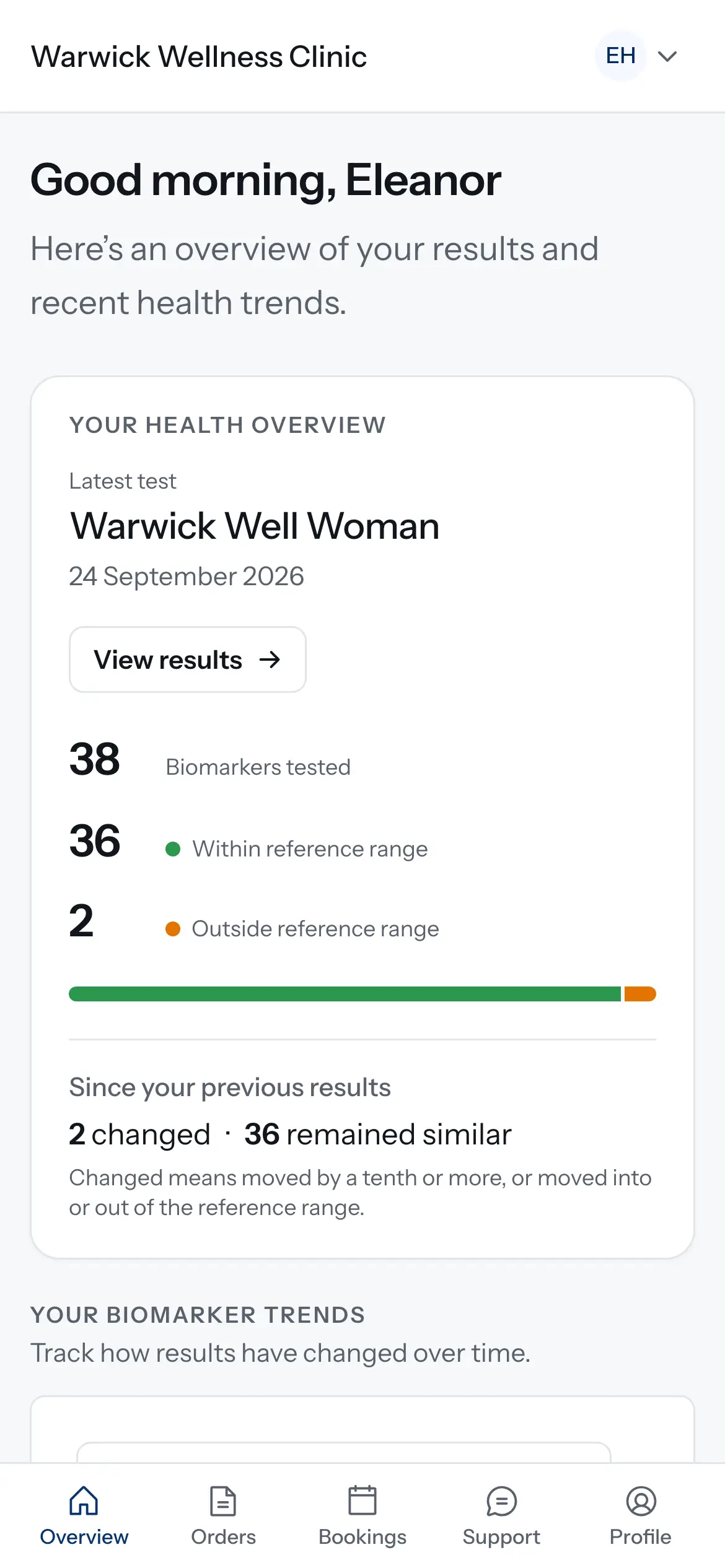
Giving patients access to the patient portal
Invite a patient, or a parent or carer, to your clinic's patient portal, decide whether they can book tests, and take access away when it should end.
1 min read