Guide · Using Doxtor
Building your own panels
Put the tests your clinic offers together once, as named panels with a description for patients, and order them in one click from then on.
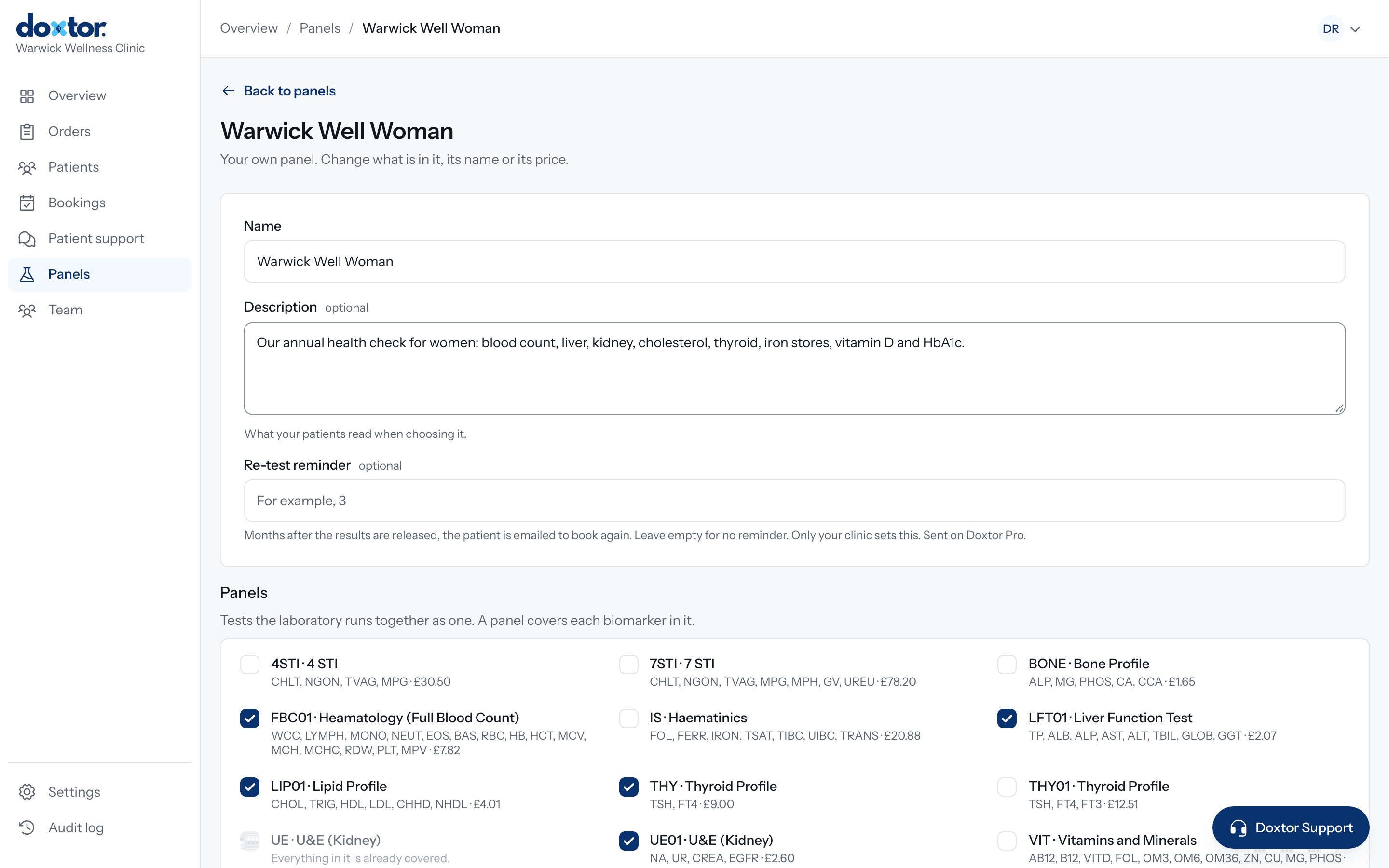
Most clinics offer the same few combinations of tests. A panel of your own puts one together once, under your clinic’s name for it, so it is ready on every order.
Create a panel
Open Panels and choose New panel.
- Name. What your clinic calls it, for example a well woman check.
- Description. Optional. What your patients read when choosing it, for example in the patient portal.
- Re-test reminder. Optional. A number of months after the results are released when the patient is emailed to book again. Only your clinic sets it, and reminders are sent on Doxtor Pro.
- What is in it. Choose from the laboratory’s panels, then any single biomarkers.
A biomarker is never on a panel twice
Choosing a laboratory panel covers every biomarker in it. Those biomarkers are then shown as covered and cannot be chosen again, and a panel whose biomarkers are all covered already is shown as covered too. As you build, Doxtor shows what the panel comes to.
Using your panels
Your panels appear first under Panels, and alongside the laboratory’s panels and single biomarkers when you place an order. On Doxtor Pro, patients can book them from the patient portal.
Change what is in a panel, or its name, whenever you need to.
See also: placing your first order.
Related resources
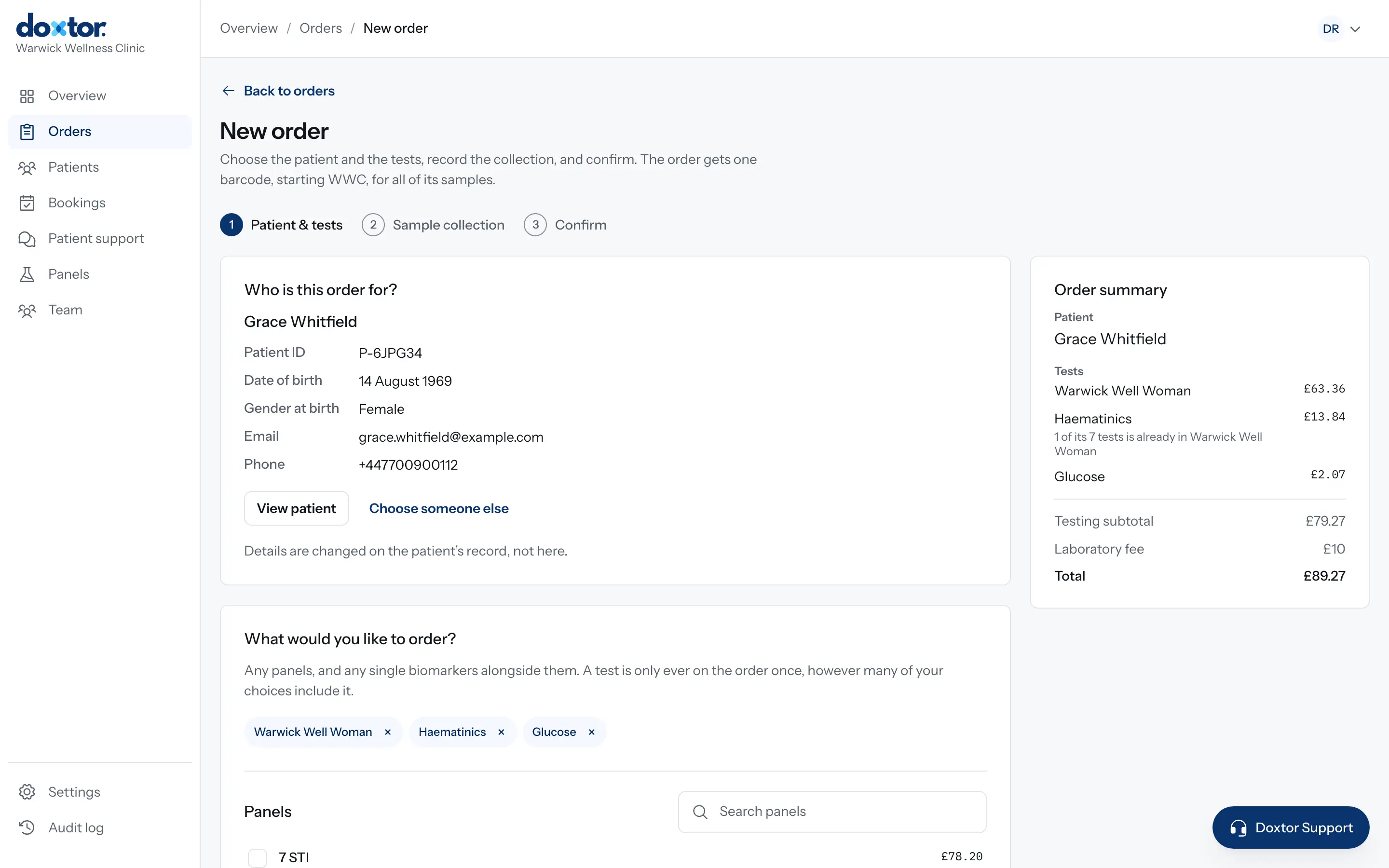
Placing your first order in Doxtor
From choosing the patient and tests to labelling the samples and sending them to the laboratory: every step of an order in the Doxtor console.
2 min read
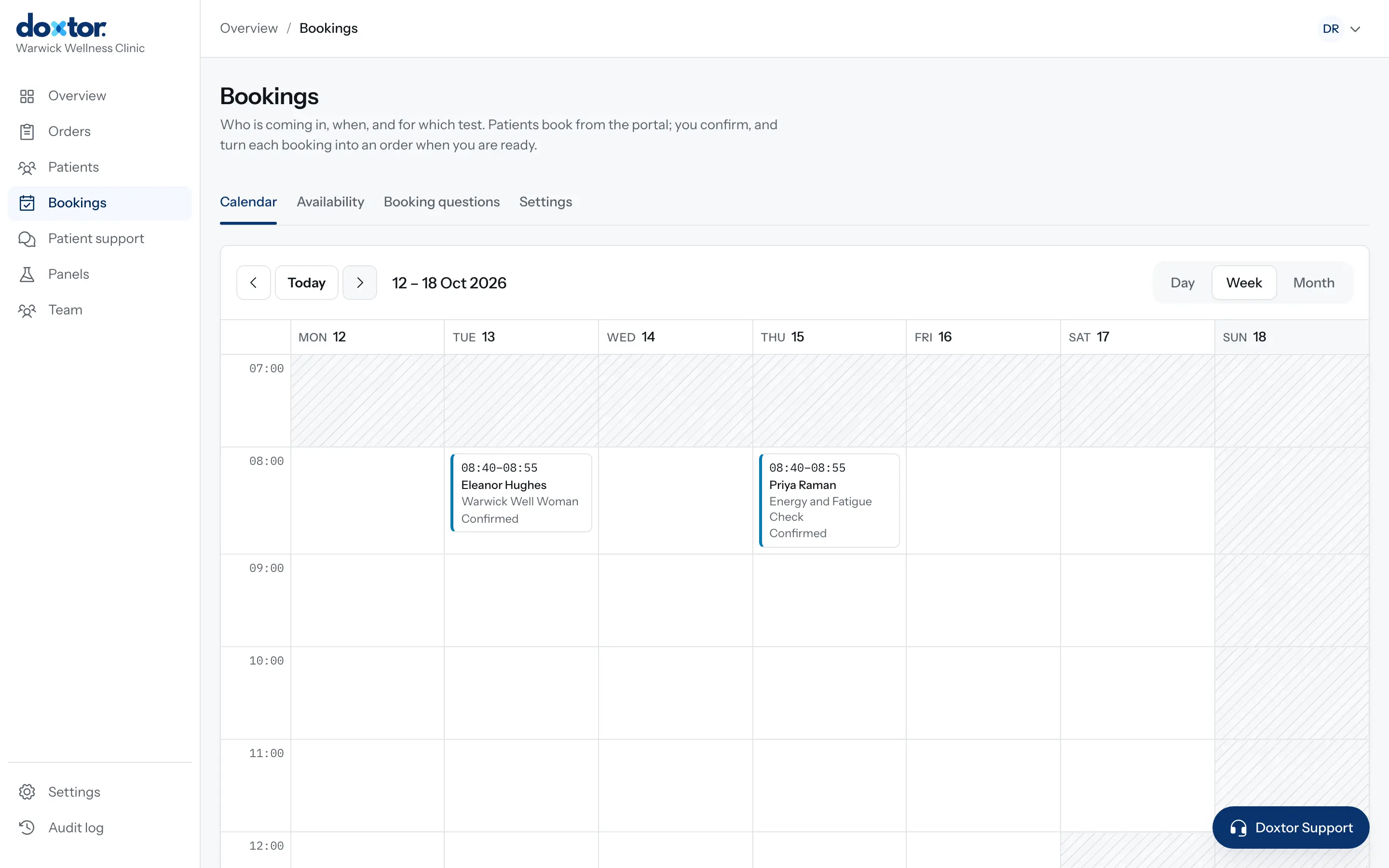
Setting up bookings for your patients
Let patients request appointments from the patient portal: set your opening hours and capacity, add your own questions, then confirm requests and turn them into orders.
1 min read
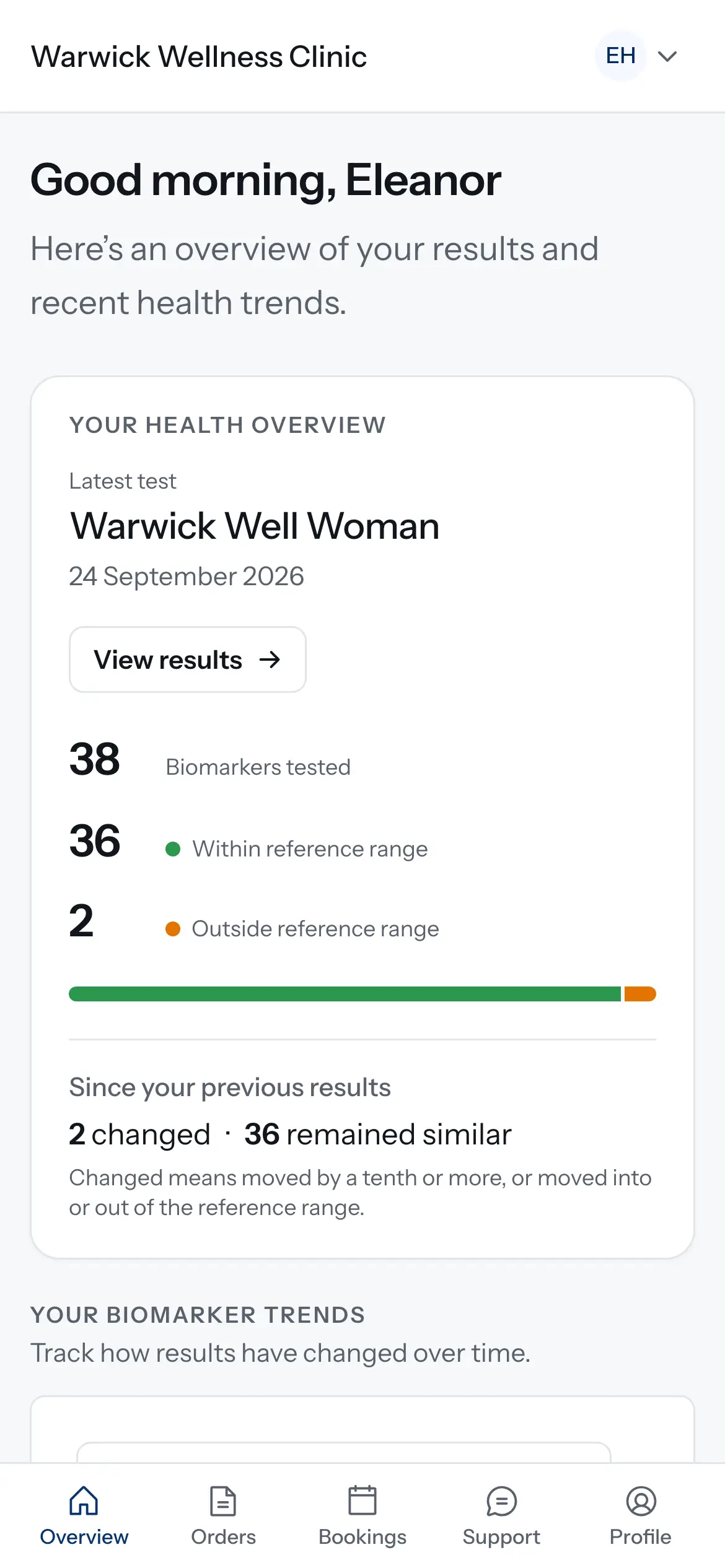
Giving patients access to the patient portal
Invite a patient, or a parent or carer, to your clinic's patient portal, decide whether they can book tests, and take access away when it should end.
1 min read