Guide · Using Doxtor
Setting up bookings for your patients
Let patients request appointments from the patient portal: set your opening hours and capacity, add your own questions, then confirm requests and turn them into orders.
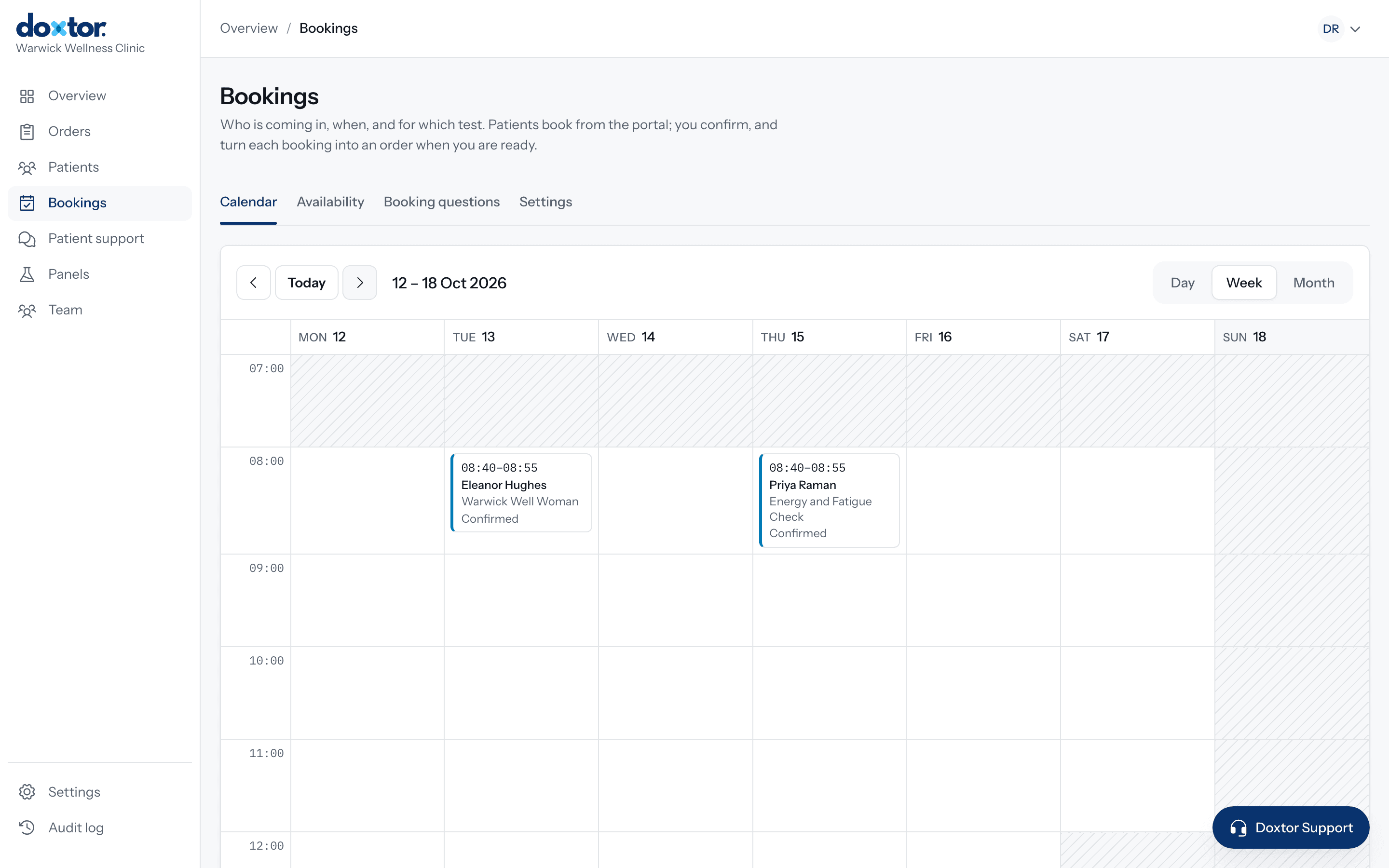
Bookings are part of Doxtor Pro. Patients request an appointment for a test from your patient portal, and your team decides what happens next. A booking is a request, not an order: nothing reaches the laboratory until your team turns it into one.
Open Bookings. It has four tabs: Calendar, Availability, Booking questions and Settings.
Availability
Set the times your clinic takes appointments, for each day of the week. Then choose:
- how long an appointment lasts, and any gap between appointments;
- how many people can book the same time;
- an optional limit on bookings a day;
- the minimum notice a patient must give, and how far ahead they can book; and
- dates you are closed.
Patients only ever see times that are free. Two patients cannot take the last place at the same time.
Booking questions
Add questions patients answer when they book, for every test or only for some. Questions can be required or optional, and are shown to the patient exactly as you write them.
Which tests patients can book
Patients book from your clinic’s own panels. You can narrow which ones are offered. No price is shown while booking: that is between your clinic and the patient.
Handling a request
Each request appears in the calendar, by day, week or month. Your team can:
- confirm it, and the patient is emailed;
- decline it, and the patient is emailed; and
- convert it into an order when the patient arrives, so it follows the normal order steps from there.
Patients can cancel a request before it starts.
See also: building your own panels.
Related resources
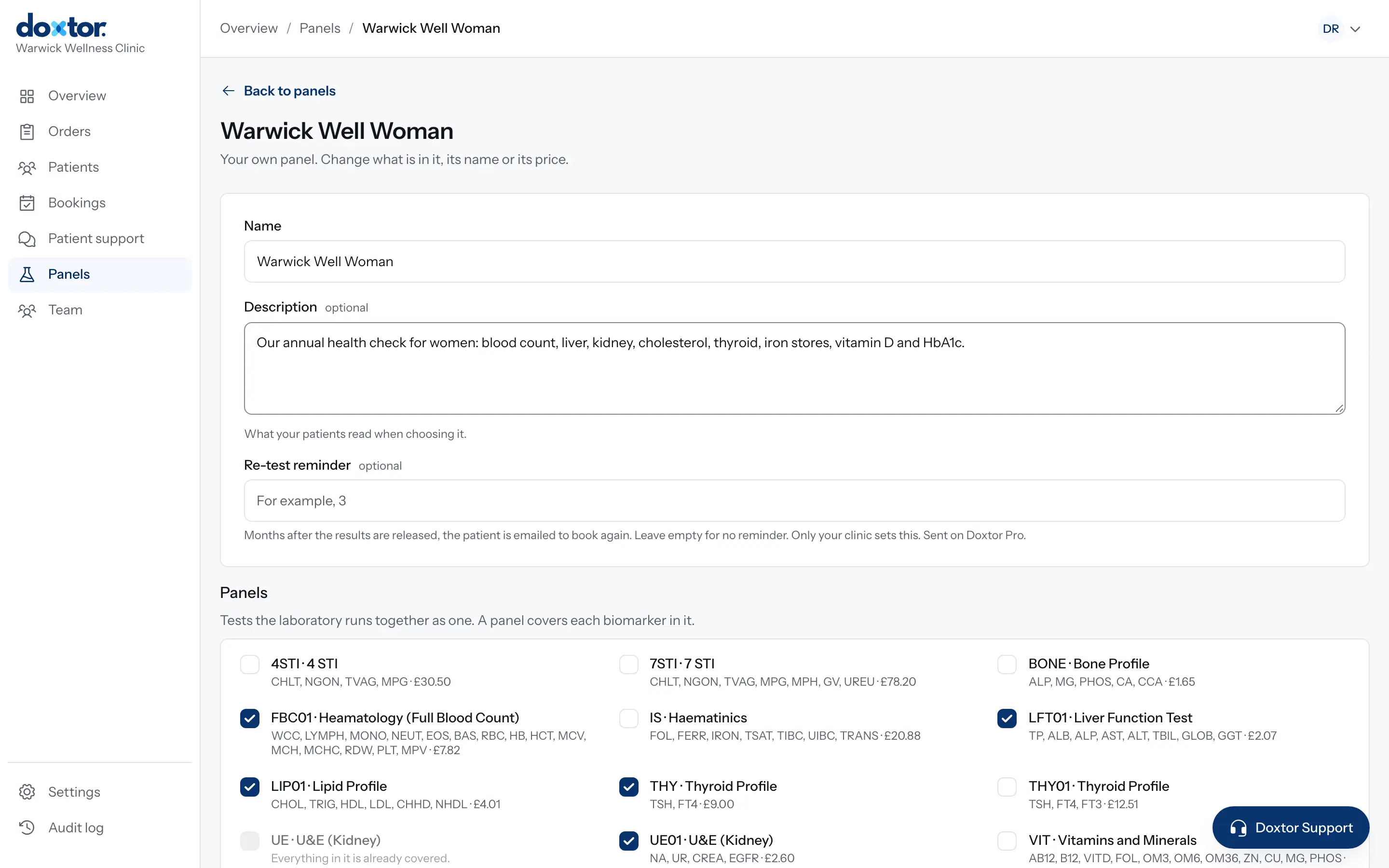
Building your own panels
Put the tests your clinic offers together once, as named panels with a description for patients, and order them in one click from then on.
1 min read
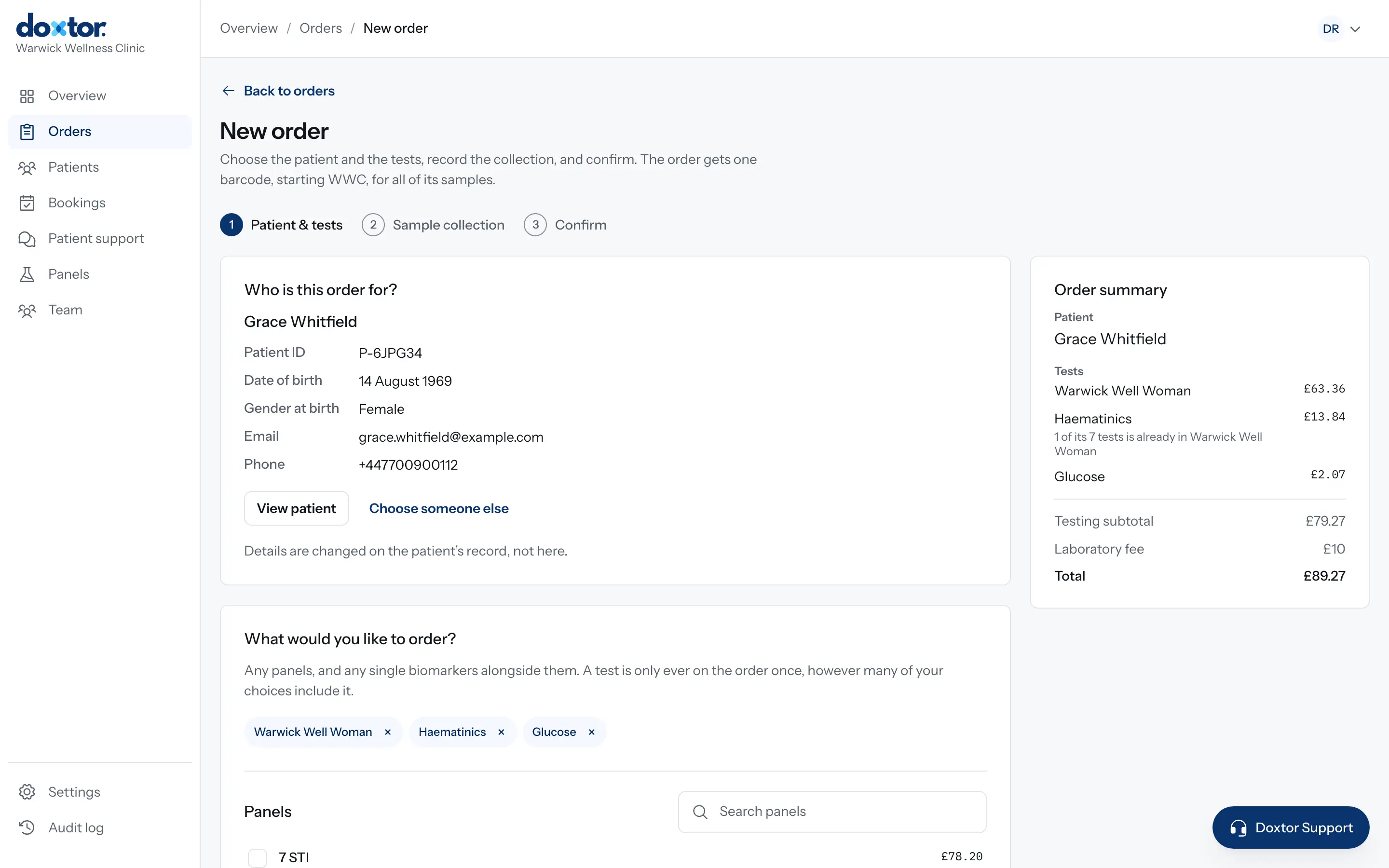
Placing your first order in Doxtor
From choosing the patient and tests to labelling the samples and sending them to the laboratory: every step of an order in the Doxtor console.
2 min read
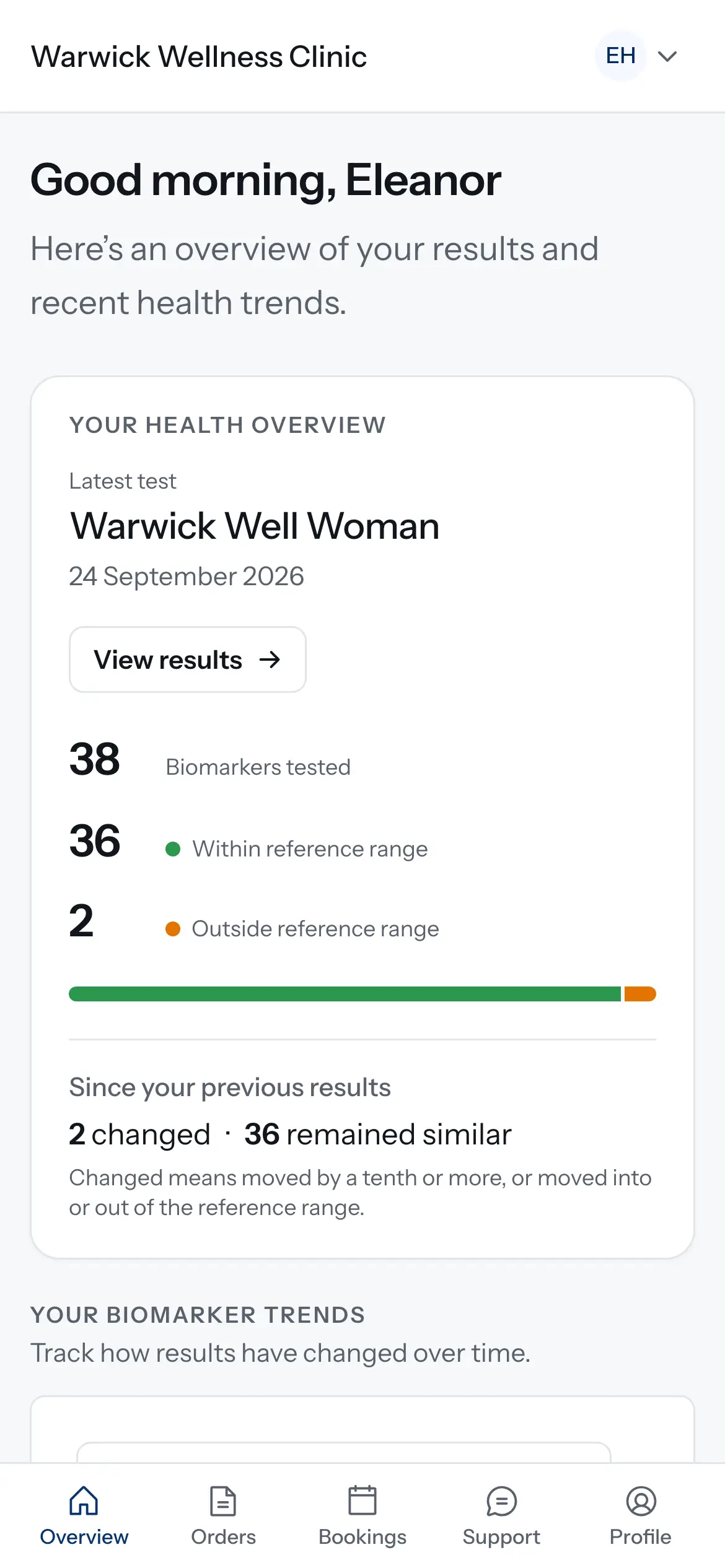
Giving patients access to the patient portal
Invite a patient, or a parent or carer, to your clinic's patient portal, decide whether they can book tests, and take access away when it should end.
1 min read